
Privileged Identity Management
This guide is for security/identity engineers implementing PIM in Entra ID in mid-to-large environments.
What is Privileged Identity Management?
Privileged Identity Management (PIM) is a capability within Microsoft Entra ID that allows organisations to manage, control, and monitor access to high-risk and sensitive resources. These resources include roles and permissions across Microsoft Entra ID, Azure, and other Microsoft online services such as Microsoft 365 and Microsoft Intune. At its core, PIM is a security practice designed to govern and protect privileged accounts by ensuring elevated access is granted only to authorised users, for approved purposes, and for a limited period of time.
Why use PIM?
Historically, administrators have been granted permanent access to critical systems to perform their day-to-day tasks. While operationally convenient, this model creates significant security risk by leaving powerful accounts continuously exposed. If compromised, these accounts can be abused to access systems across an organisation with little resistance or visibility.Privileged Identity Management addresses this risk by reducing standing access and enforcing stronger governance over privileged roles. PIM helps organisations:
- Identify and understand privileged access
Discover who holds privileged roles across Entra ID, Microsoft 365, Intune, and other Microsoft services through dashboards, alerts, and reporting.
- Reduce attack surface
Replace permanent role assignments with eligible access, significantly lowering exposure to credential compromise.
- Enable Just-In-Time (JIT) access
Allow users to activate privileged roles only when required, with controls such as Multi-Factor Authentication (MFA), justification, approval workflows, and time-bound access.
- Monitor and audit privileged activity
Capture alerts, logs, and audit reports for role assignments and activation's to support security monitoring and investigations.
- Regularly review privileged access
Conduct access reviews to ensure users continue to require elevated permissions, helping enforce least privilege over time.In short, PIM helps organisations move away from always-on administrative access toward a controlled, auditable, and risk-aware model of privileged access management.
License Requirements
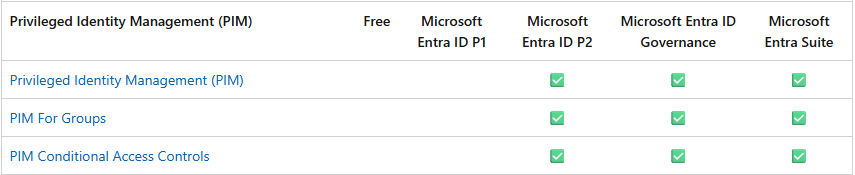
You need either Microsoft Entra ID Governance licenses or Microsoft Entra ID P2 licenses to use PIM and all of its settings.
Permissions Required
Azure
You can view and manage the management groups or subscriptions to which you have Microsoft.Authorization/roleAssignments/write permissions, such as User Access Administrator or Owner roles. If you aren't a subscription owner, but are a Global Administrator and don't see any Azure subscriptions or management groups to manage, then you can elevate access to manage your resources.
Entra
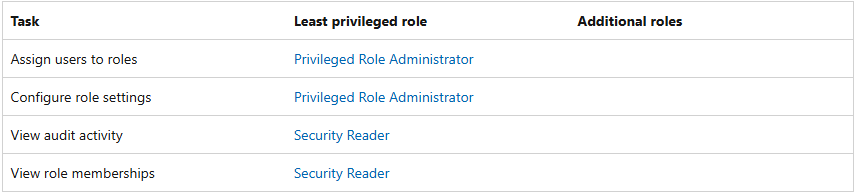
Since you are assigning roles to users or groups, you will require the Privileged Role Administrator role.
Privileged Role Administrator can can create role-assignable groups
Action: microsoft.directory/groupsAssignableToRoles/create - (Create role-assignable groups)
Least Privileged role for PIM tasks.
Role Based Access Control (RBAC)
To start constructing PIM you will need to determine some information about the organisations IT hierarchy, policies, procedures, IT business operations, and more. This will ensure you have enough understanding of the organisation to correctly make a PIM architecture that will be fit for use. PIM will always change due to the nature of humans and evolution, so be ready and open minded for corrections and additions.
The following can be a great start to gather information to help you on your RBAC and PIM journey.
Organisational Structure & Escalation
- IT hierarchy and reporting lines
- Teams and sub-teams within IT departments
- Support tiers or levels (L1 / L2 / L3 or equivalent)
- Escalation paths (who escalates to whom, and under what circumstances)
Responsibilities & Operating Model
- What each team is responsible for in steady-state operations
- Where responsibilities are shared or overlap between teams
- Which activities are business-as-usual versus incident-driven
- After-hours and incident response expectations
Privileged Access & Risk Context
- What privileged access is required to perform responsibilities
- Access that is:
- Business-as-usual
- Occasional
- Emergency-only
- Whether there is a justified case for any permanent active roles within the organisation
PIM Design Considerations
- Whether multiple teams or individuals require the same roles
- Approval process for role elevation (who approves what)
- Expected role activation duration
- MFA requirements on top of role activation
- What operational impact occurs if activation takes too long
Privileged Identity Management Settings
During the RBAC investigation phase, it is also a good time to start asking about the appetite for particular PIM settings. Is the organisation wanting to:
- Require MFA or enforce MFA on every elevation
- Require an incident ticket reference
- Require approval
- Who is the approver
- Activation duration
- Role eligibility - permanent or time bound
While there are widely accepted best-practice settings for Privileged Identity Management, such as requiring approval for role elevation, these controls should be applied in a way that aligns with the organisation’s operational context.
For example, in smaller teams (or single-administrator environments), an approval requirement may not be practical. Additionally, some administrators may need to activate privileged access after hours or during emergency situations, where waiting for approval could delay critical response.
In these cases, alternative safeguards, such as strict activation time limits, mandatory MFA, justification requirements, and enhanced auditing, should be used to manage risk without impeding operational needs.
Settings for example:
Role | Require MFA | Require Conditional Access | Notification | Incident ticket | Require approval | Approver | Activation duration | Eligible expiration |
Global Administrator | ✔️ | ✔️ | ✔️ | ✔️ | ✔️ | Other Global Administrator | One hour | Permanent Eligible |
Exchange Admin | ✔️ | ✔️ | ✔️ | ❌ | ❌ | None | Two Hours | Six months |
Helpdesk Admin | ❌ | ❌ | ❌ | ✔️ | ❌ | None | Eight hours | Six months |
Owner | ✔️ | ✔️ | ✔️ | ✔️ | ✔️ | Other owners of the resource | One Hour | Three months |
Member | ✔️ | ✔️ | ✔️ | ❌ | ❌ | None | Five Hours | Six months |
Privileged Identity Management for Roles or Groups
Privileged Identity Management can be targeted to individual roles or groups. The situation depends on your environment and use cases.
PIM for roles is generally suitable for environments with a smaller administrative user base, where privileged access is limited primarily to Microsoft Entra ID and Azure roles.
PIM for groups (PAG) is better suited to larger organisations with multiple administrators operating across the broader Microsoft 365 stack. This approach allows privileged access to be managed consistently in scenarios where direct role-based PIM is not available, such as access to Microsoft Intune, Microsoft 365 services, and other group-based permissions.
Privileged Access Group Design & Configuration
In most scenarios, Privileged Access Groups (PAGs) will be used, as they provide greater flexibility and scalability when extending privileged access across Microsoft online services. This approach also supports future growth as organisational maturity and capability in Privileged Identity Management increases.
At this stage, you should begin collating the information gathered during RBAC discovery and use it to design and create your Privileged Access Groups.
Step 1 Create Privileged Access Groups
Start by creating security groups that represent each administrative function or team identified during RBAC discovery.
Group | Members |
PAG-SERVICE-DESK | Adam, Steve |
PAG-DEV-TEAM | Stan |
Step 2 Map Administrative Roles to Groups
Next, map the administrative roles required by each team to their corresponding Privileged Access Group, ensuring that least privilege principles are applied.
Team | Group | Roles |
Service Desk | PAG-SERVICE-DESK |
|
Development Team | PAG-DEV-TEAM |
|
Step 3: Configure PIM Settings for Each Group
Once groups and role assignments are defined, configure the PIM activation settings for each Privileged Access Group.
Settings for PAG-SERVICE-DESK | Value |
Allow permanent eligible assignment | No |
Expire eligible assignments after | 12 Months |
Allow permanent active assignment | No |
Expire active assignments after | 12 Months |
Require Entra Multi-Factor Authentication on active assignment | Yes |
Require justification on active assignment | Yes |
Role Tiering
The examples above demonstrate a simple, flat approach to Privileged Identity Management. As organisational maturity increases, you can introduce role tiering to apply progressively stronger controls to more privileged roles.
Tiering allows you to differentiate between low-risk administrative functions and high-impact identity or platform roles, ensuring that the most powerful access is subject to the strictest controls.
For example, a service desk function may be split into multiple tiers:
- L1 – Read-only or monitoring access
- L2 – User and authentication administration
- L3 – Service or workload administration (Exchange, SharePoint, Intune, etc.)
Each tier is represented by a separate Privileged Access Group (PAG), with only the minimum roles required for that tier assigned.
For example
Team | Group | Roles |
Service Desk | PAG-SERVICE-DESK-L1 |
|
Service Desk | PAG-SERVICE-DESK-L2 |
|
Service Desk | PAG-SERVICE-DESK-L2 |
|
Each Privileged Access Group can then be configured with different PIM activation requirements based on the risk profile of the roles it contains.
For example:
- A Level 1 PAG containing reader roles may allow permanent eligible assignments with no approval required.
- A Level 2 PAG may require MFA and justification, with short activation windows.
- A Level 3 may require MFA, justification, approval, ticket references, and very limited activation durations.
These decisions should always be driven by the organisation’s risk appetite, operational requirements, and audit expectations.
There is no single “correct” configuration, the goal is to apply appropriate friction where the impact of misuse is highest.
Final thoughts
Privileged Identity Management isn’t just a feature, it’s an operating model.
The objective is to reduce standing privilege while still allowing administrators to work effectively during both business-as-usual operations and incident response. Start small: clearly define administrative teams and responsibilities, map the minimum roles required, and apply a baseline of MFA, justification, and short activation windows.
From there, evolve your model over time based on operational feedback, audit outcomes, and changes in organisational risk.